Load Your Answer File Into Jobber's AI Receptionist (and Other AIs)
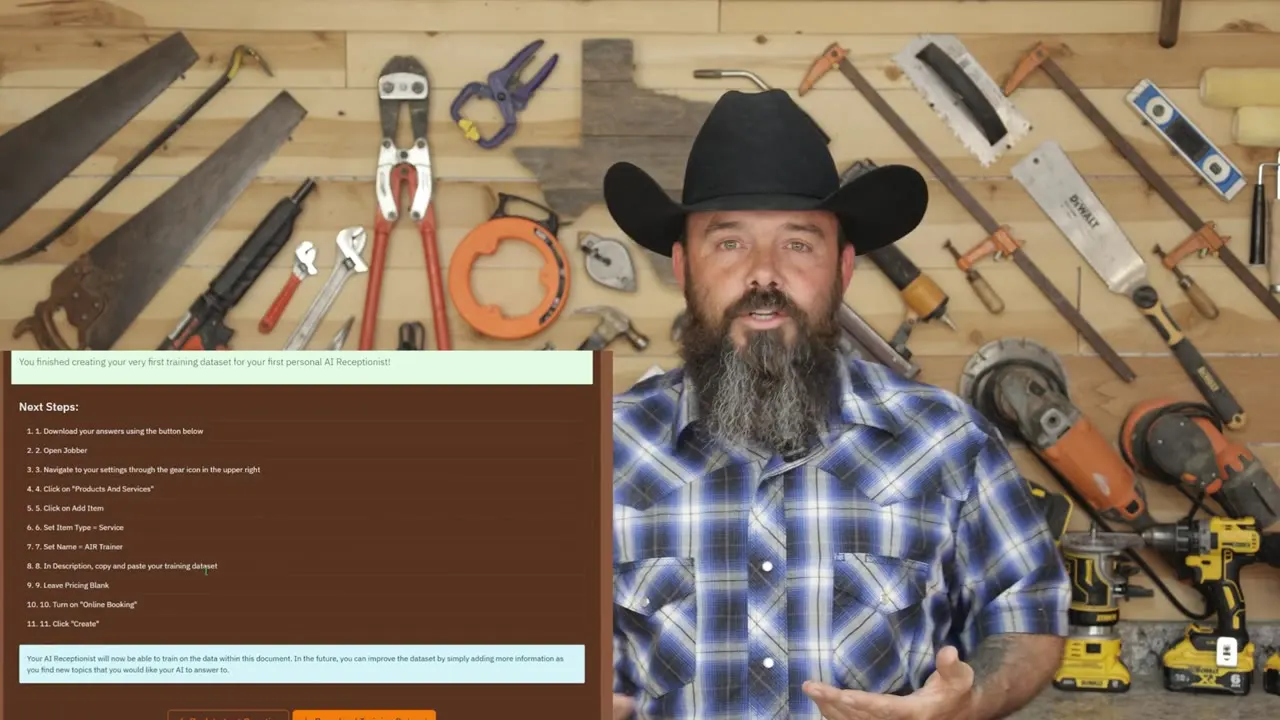
Direct answer: Jobber's AI Receptionist does not take a file upload. Jobber's help pages (read November 21, 2026) say she learns from your company settings, the Essential information in your Business Profile, and the FAQ section of your Jobber website. Ray's way to load the full answer file: copy the whole TXT file from the AI Receptionist Trainer, paste it into the description of a service in Jobber, and turn on online booking for that service so she can see it.
Below: how to build the file, which file to use, Ray's steps in Jobber, Jobber's own fields, how to test her and send her your calls, and how to use the same file in ChatGPT or another AI. Ray walks through all of it on screen in his video What Is Jobber AI Receptionist? Full Setup Guide.
- 3 other companies a caller tries when you miss the call (Ray)
- About 100 questions the free trainer has you answer
- 1,000 characters per Essential information field in Jobber
- $99 a month for Receptionist as an add-on; included on Plus (Jobber)
Why an AI receptionist is worth the setup
When you work alone, you can't pick up the phone with your hands full. Every call you miss can be a job somebody else gets.
And the Jobber AI Receptionist can come in really handy for you if your business is very small, because that means you're probably usually busy, and you're probably under a sink with wrenches in your hand, and you can't answer your phone. So it's going to be really good to have those calls getting answered during the day while you're busy, so that you don't miss those calls. Because most of the time, if somebody tries to call you and you don't answer that phone, they're going to call 3 other people, and somebody is going to answer their phone, and that person's going to get the job.
... it costs you $100 for every hour that you spend on the phone. So for every hour that she spends on the phone for you taking care of business for you, that's another hour that you get to remain billable on a job, making money and getting your business moved forward.
Step 1: Build your answer file in the trainer
The trainer asks the questions callers ask most: your hours, your services, payment, materials, shoes in the house and more. Your receptionist won't know these answers unless you give them to her. This is the walkthrough from Ray's setup video.
Now, your AI is going to do best if you put a full sentence here. "Our normal hours of operation are Monday through Friday from 8 AM to 5 PM, excluding holidays," and blah, blah, blah, whatever your answer is.
So you're not stuck with just the 98 questions that I've laid out here for you. These are the most common questions that I think you need to have answered, but you can also add all of your own questions.
- Make a free account: Go to bulletproofhandyman.com and create a free account. Ray: "I don't even have a way to take your money if you want to give it to me."
- Open the trainer: Click Tools, find the Jobber AI Receptionist Trainer, and click Launch Tool. Or go straight to /tools/air-trainer.
- Answer Questions: Answer each question in a full sentence. Your answer saves as you type; the Save Answer button is there for peace of mind. Click Next to move on.
- Review and Add Questions: Click Skip to Review All to scan every answer. Fix anything that isn't how you want her to talk. Add your own questions and answers for anything the list missed.
- Download the data set: Click Go to Download Page. You get two buttons: Download TXT and Download JSON. If you add questions later, come back and download again.
Step 2: Pick the right file
TXT is what we're going to use to train our Jobber AI Receptionist on the Jobber platform. The JSON is just there for you, because a lot of AIs like JSON. So if you're using, for example, ChatGPT, and you want ChatGPT to know all this information about your business, ChatGPT will understand the text or the JSON either one ...
- TXT: for Jobber: Plain text questions and answers. This is the one Ray copies and pastes into Jobber.
- JSON: for other AIs: The same answers in a format many AI tools read well, like ChatGPT. Use it when a tool asks for a file.
What Jobber's Receptionist can read
Jobber's Receptionist help page lists three information sources she is trained on. None of them is a file upload. In Jobber, open Receptionist from the side navigation; Ray finds these under Manage, then Actions, then Information Sources.
Under these Information Sources, think of this essentially as the answer to the question: what can my AI Receptionist see?
- Company settings: Business name, contact details, region and tax settings. Jobber's page says to click the pencil icon to make changes.
- Business Profile: The Essential information section: your services, policies and what makes your business unique.
- Website FAQ: The FAQ section of your Jobber website. Jobber says the website does not need to be published for her to use it.
Step 3: Load the file into Jobber (Ray's way)
Ray's method gets the whole answer file in front of her at once. He puts it in the description of a service and makes that service bookable online, because she can see your bookable services. These are his clicks from May 2026, starting from the Jobber home screen.
- Don't see an Online Booking switch on the item? Jobber's online booking help (updated October 28, 2026) adds bookable services this way: gear icon, Settings, Requests and Bookings. In Forms, pick your form, add the Job booking question, then click Add service in the Bookable services section and pick the service. Click Save or Update.
- Check what clients see. The same Jobber page says clients booking online see each service's description, price and duration, with Show more for long descriptions. Open your own booking page and look before you rely on it.
You've got to come down here to Online Booking and you have to turn this on. This has to be an online bookable job for your receptionist to see it. If she can't see it, she can't train on it. She can't reference it.
- Open Products and Services: Click the gear icon, then Settings, then Products and Services.
- Add a service: Click Add Item. Make sure it is a service, not a product.
- Name it: Any name works. Ray used "Jobber AIR Trainer Program."
- Paste the file: Open your TXT file, copy the entire thing, and paste it into the description.
- Turn on Online Booking: Turn on Online Booking for this item, then click Create. You may need to turn on online booking in Jobber first.
Step 4: Fill in Jobber's own fields too
These are the places Jobber itself says she reads. Put your most important answers here too, written short.
... you can fill in your frequently asked questions, and anything you put in there, she can see, which means she can answer questions based off of it.
- Business Profile, Essential information: Gear icon, Settings, Business Profile. Fill in About, Policies and Services. Jobber allows up to 1,000 characters in each and says to use bullet points or simple sentences. It is for knowledge only, so don't type commands like "send an email." A Generate button can draft it from your website. Source: Jobber Business profile help.
- Jobber website FAQ: If you have a Jobber website, fill in its FAQ section. From the Receptionist information sources, the pencil icon opens your website settings. Source: Jobber Receptionist help.
Step 5: Test her before clients call
Jobber's setup has a test step: enter your phone number and Receptionist calls you, so you can ask her questions. Ask her the questions you answered in the trainer, then ask some odd ones. Source: Jobber Receptionist help.
... use that test button and your Jobber AI receptionist will actually call you and you can talk to her to see how you like her for your business.
Now, is she perfect? Absolutely not. I've been testing her a lot.
Step 6: Send your calls to her
Receptionist answers calls and texts on your Jobber number. Keep your own business number and forward calls to it. Jobber's help says most carriers let you forward after a certain number of rings or outside business hours, and Google Voice works too. Source: Jobber Receptionist help.
So what you're going to do is you're going to set that up for call forwarding over to your receptionist. You can set it up so that maybe after 5 p.m. every day, all the calls go to the receptionist immediately, and before 5 p.m. Monday through Friday, maybe you let it ring on your phone 4 times or 5 times, and then forward over to the receptionist.
Keep her up to date
- When a caller asks something she can't answer, Jobber says to add it to the Essential information in your Business Profile.
- Or add the question in the trainer, download a fresh TXT, and replace the text in your service description.
... if you find that there are new things that you would like her to know, you can always go back into that bookable job that you uploaded this data set to and you could just simply go add to it over time.
What it costs (Jobber, November 2026)
- Included on the Plus plan with unlimited conversations.
- An add-on on Core, Connect and Grow: $99 a month with 100 conversations per billing cycle, then $0.79 for each conversation over 100.
- It needs a dedicated phone number, available in the US, Canada and the UK.
- Source: Jobber Receptionist help, read November 21, 2026. Prices change; check the page.
Using the same file in other AIs
- ChatGPT Projects: In the sidebar, select New project and name it. Add your TXT or JSON file to the project; projects take PDFs, docs, spreadsheets, images or pasted text. Free plans hold 5 files per project; Go and Plus hold 25. To tell it how to use the file, open the ••• menu, then Project settings. Source: OpenAI, Projects in ChatGPT.
- Custom GPTs: skip them: OpenAI says personal ChatGPT accounts can no longer create new GPTs, and custom GPTs are set to retire on December 11, 2026. Source: OpenAI, Creating and editing GPTs.
- Jobber website chat: Jobber lists Website chat in the Receptionist settings. Ray says it's the same receptionist in chatbot form, so it uses the same information.
- Other receptionists and chatbots: Look in its settings for a knowledge base, FAQ or training data area. If it takes a file, upload the TXT or JSON. If it only has text boxes, paste your answers. Every tool is different; follow that company's own help page.
Checklist
Checklist
- Answer every trainer question in full sentences
- Add your own questions for anything missing
- Download the TXT (Jobber) and the JSON (other AIs)
- Paste the TXT into a Jobber service description and make the service bookable online
- Check what clients see on your online booking page
- Fill in About, Policies and Services in Business Profile, Essential information
- Fill in the FAQ on your Jobber website
- Run the test call and ask her your hardest questions
- Forward your business line to your Jobber number (after rings or after hours)
- Add new answers whenever she misses one
Step-by-Step
- Build your answer file — In the free AI Receptionist Trainer, answer every question in full sentences, add your own questions, then download the TXT and JSON files.
- Pick the right file — Use the TXT for Jobber. Use the JSON or TXT for other AIs like ChatGPT.
- Paste it into a bookable service — In Jobber, go to Settings, Products and Services, Add Item. Make it a service, name it, paste the whole TXT into the description, turn on online booking and click Create.
- Fill in Jobber's own fields — In Settings, Business Profile, fill in About, Policies and Services under Essential information, up to 1,000 characters each. Fill in your Jobber website FAQ.
- Test her — Use Jobber's test step: enter your phone number, let Receptionist call you, and ask her your questions.
- Forward your calls — Forward your business number to your Jobber number after a few rings or outside business hours.
Frequently Asked Questions
Can I upload the answer file to Jobber's AI Receptionist?
Not as a file. Jobber's help pages don't offer a file upload. She reads your company settings, your Business Profile's Essential information and your Jobber website FAQ. Ray pastes the whole TXT into a bookable service's description so she can see it.
Should I use the TXT or the JSON file?
Ray uses the TXT for Jobber. The JSON is for other AI tools, like ChatGPT, which read either one.
Will clients see the answers I paste into a service?
They might. Jobber's online booking help says clients booking online see each bookable service's description. Open your own booking page and check.
How much does Jobber's AI Receptionist cost?
Jobber's help page (November 21, 2026) says it's included on Plus, and it's a $99 a month add-on on Core, Connect and Grow with 100 conversations, then $0.79 per conversation.